Windows + WSL2 setup
The platform runs under WSL2 the same way it runs on native Linux, but Docker Desktop needs to be told to hand its daemon to your distro first. Do this before working through the Quickstart.
1. Install Docker Desktop and enable WSL2 integration
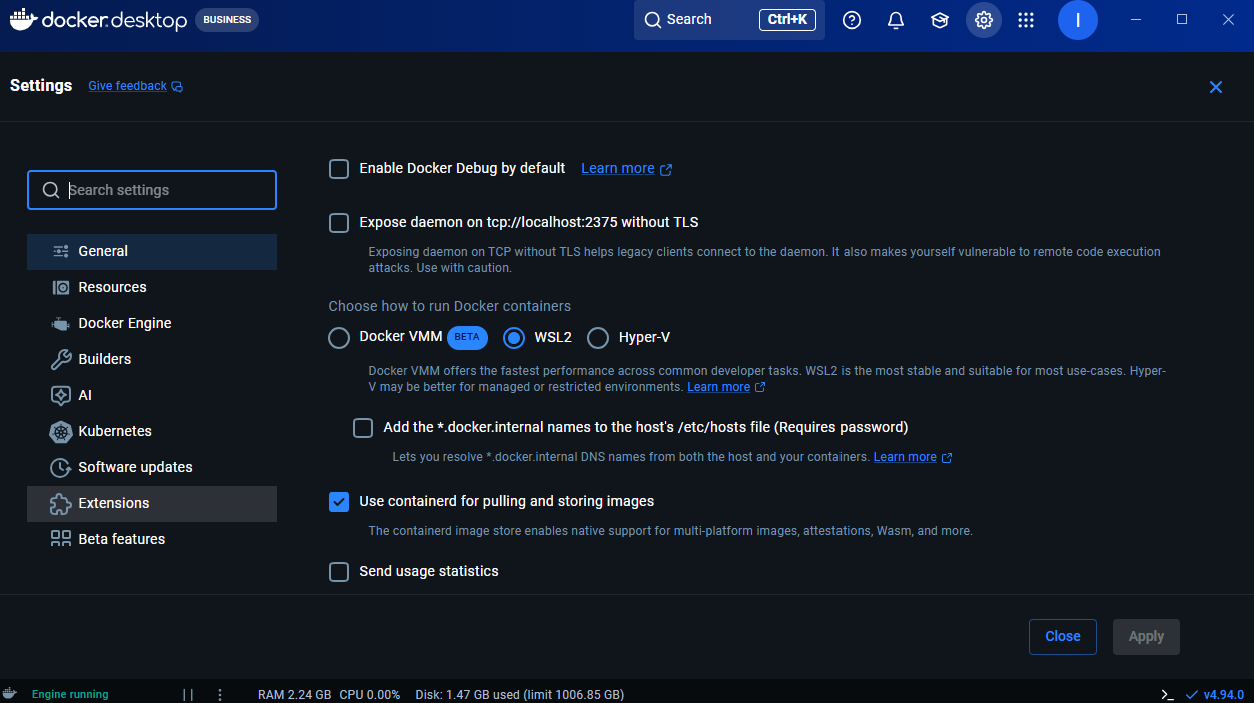
Install Docker Desktop for Windows, then turn on WSL2 integration:
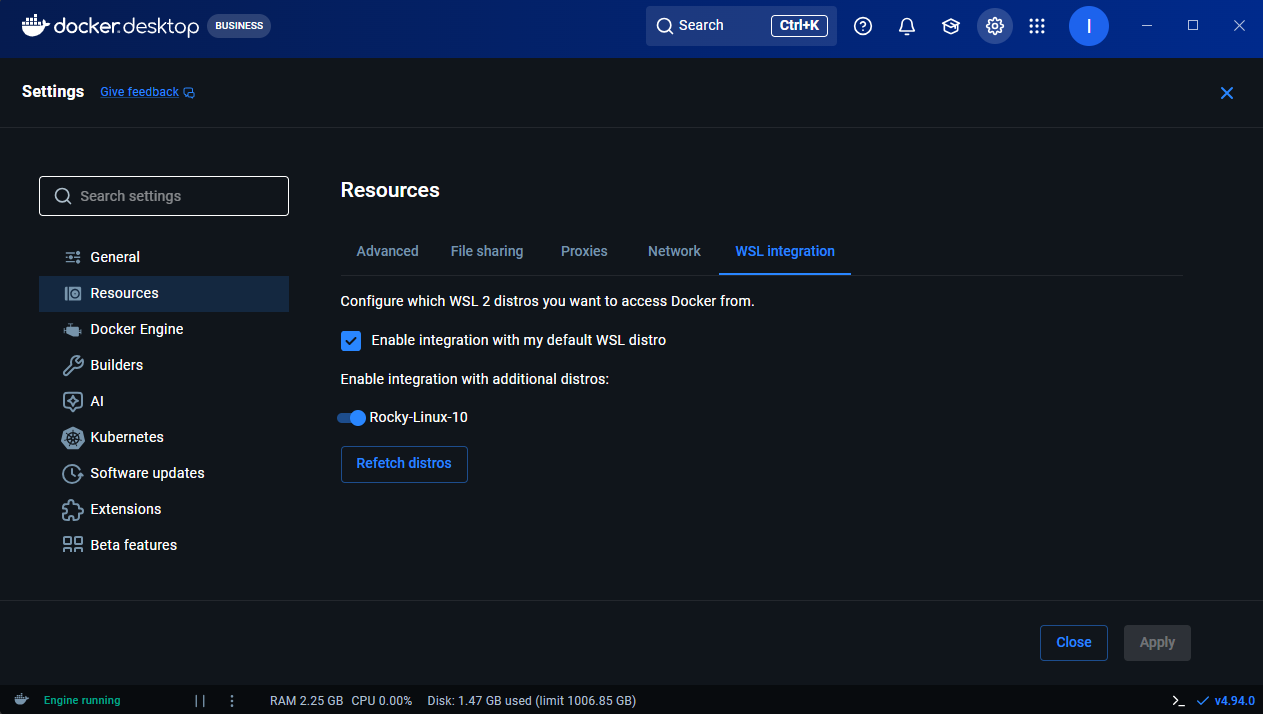
In Settings > Resources > WSL integration, enable integration with your default WSL distro (and any additional distro you run the platform from):
2. Restart WSL and Docker Desktop
Integration doesn't always take effect until both sides restart. From PowerShell:
wsl --shutdown
Close all open terminals, then quit Docker Desktop fully (not just the window) and reopen it.
3. Verify the WSL distro can reach the Docker daemon
Open your WSL distro and confirm the socket is there and the client can talk to the server:
ls -la /var/run/docker.sock
docker ps
docker info
docker ps returning an (empty) table and docker info printing both a
Client: and a Server: block confirms the distro is talking to Docker
Desktop's daemon. If docker info only shows Client: with no Server:
section, WSL integration isn't enabled for this distro yet — recheck step 1.
4. Install the remaining prerequisites inside WSL
These aren't WSL-specific, but a fresh distro is usually missing all three:
# uv
curl -LsSf https://astral.sh/uv/install.sh | sh

# make (RHEL-based distros, e.g. Rocky/AlmaLinux)
sudo dnf groupinstall "Development Tools"

# openssl (RHEL-based distros)
sudo dnf install openssl
Debian/Ubuntu-based distros can substitute sudo apt install build-essential openssl.
From here, continue with the main Quickstart.